Hi @Alfred1,
It’s very simple you can disable the Check for Updates button on the Windows update page using Group Policy editor. If you are in domain environment you can achieve from the domain server either you have to update the group policy setting manually on all the computers.
How to disable Check for Updates button in Windows update page:
Windows 10 has a policy which will disable the Check For updates button when you enable it.
1. Press " WIN+R " key combination to launch RUN dialog box then type gpedit.msc and press Enter. It’ll open Group Policy Editor.
2. Computer Configuration -> Administrative Templates -> Windows Components -> Windows Update.
3. In right-side pane, look for " Remove access to use all Windows Update features " option.
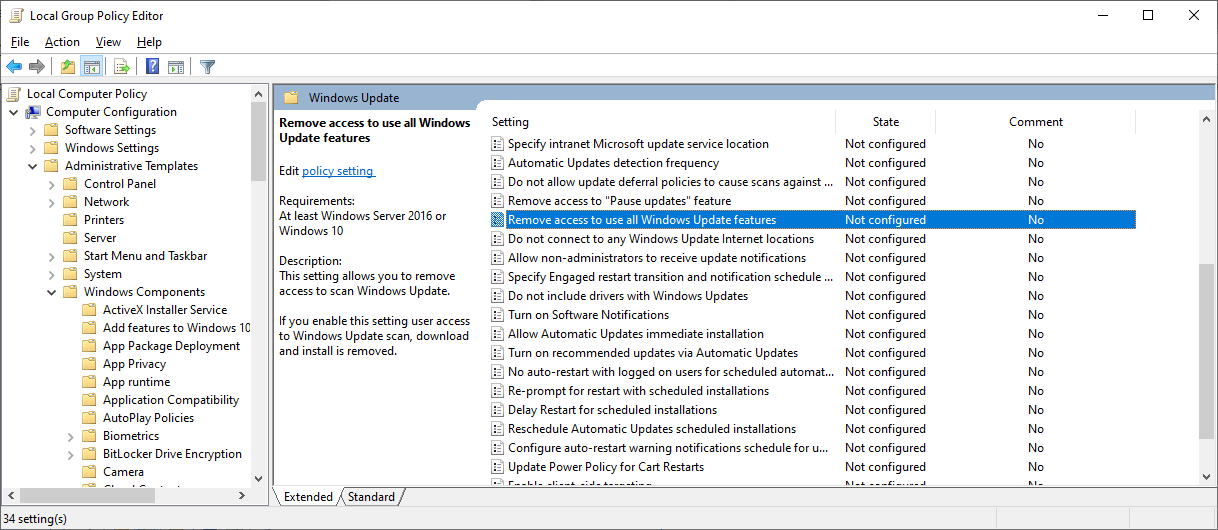
4. The option would be set to Not Configured . Double-click on it and set it to Enabled.
5. Now wait for few seconds and open Windows Update page in Settings app and you’ll find “Check for Updates” button grayed out i.e. disabled.
