Hi @RafathR,
I saw this TenForums article online I assume this will help to solve your problem.
How to Enable or Disable Clipboard History in Windows 10
- Option One: Enable or Disable Clipboard History in Local Group Policy Editor
- Option Two: Enable or Disable Clipboard History using a REG file
Enable or Disable Clipboard History in Local Group Policy Editor
The Local Group Policy Editor is only available in the Windows 10 Pro , Enterprise , and Education editions .
All editions can use Option Two below.
1. Open the Local Group Policy Editor .
2. In the left pane of the Local Group Policy Editor, click/tap on to expand Computer Configuration , Administrative Templates , System , and OS Policies . (see screenshot below)
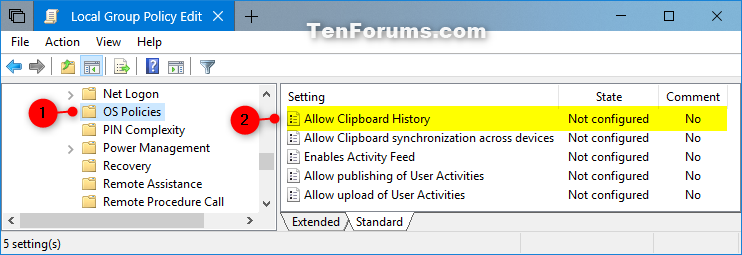
3. In the right pane of OS Policies , double click/tap on the Allow Clipboard History policy to edit it. (see screenshot above)
4. Do step 5 (enable) or step 6 (disable) below for what you would like to do.
Enable or Disable Clipboard History using a REG file
The downloadable .reg files below will add and modify the DWORD value in the registry keys below.
HKEY_LOCAL_MACHINE\SOFTWARE\Policies\Microsoft\Windows\System
AllowClipboardHistory DWORD
(delete) = Enable
0 = Disable
Credit: TenForums
